My Work
Everything assigned or assignable to you across views.
Everyone in the workspace can see the contents of a view. View members receive notifications for its active work and discussion. Backlog job comments notify the people following that job. The stages, see Approvable, and wizards of a view can also be configured for my work or team.
To create a new view choose “+” next to “Views” from the workspace left nav. Alternatively, a view can be created from the Compose button also on the workspace left nav.
Views come in three types: team, my work, and everyone. My work is a view that shows all your work and potential work across all other views and is also a view itself. An everyone view automatically includes all workspace members. A team view is used when you want only certain workspace members.
Clicking the three dots next to a view opens this panel:
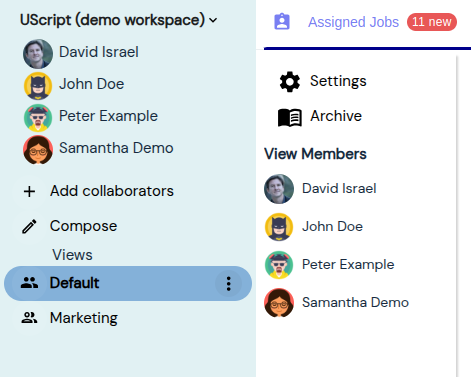
View members receive notifications such as approvals, critical bugs, ready to start jobs, and assistance for active work in this view. Backlog comment notifications go to the job’s followers. You can remove a member of a view by choosing Settings above and then unchecking the box next to their name.
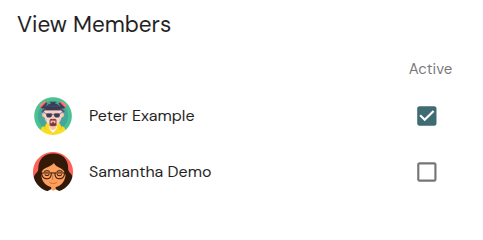
Also in view settings you can add someone else to a view. To add yourself to a view click the three dots next to it and choose + Add me under View Members.
For active jobs, notifications use the view’s members and the job’s followers, with mentions addressing specific people. Backlog job comments notify the job’s followers. Sending a comment or reply, including a note, grouped task, or resolved comment, or voting on the job or one of its options starts following the job unless you have already unfollowed it. Creating the job, being assigned, or belonging to its view alone does not start following it.
Follow a Backlog job to keep up with its discussion before you have participated. Unfollow to stop ordinary Backlog comment notifications. Recipients must still have workspace access. Mentions and direct replies retain their usual behavior, and notes without mentions remain quiet.
For instance, developers working together loosely could each have their own view. Bob has Bob’s Work and Nancy has Nancy’s Work, all in one workspace. Nancy can receive notifications for Bob’s jobs by participating, following a job, or being mentioned.
Bob and Nancy could also have a view called Bob and Nancy’s Work where they both receive the usual notifications for active jobs, bugs, and discussion. Backlog job comments still go to that job’s followers.
In a view’s Settings, AI agents take the next available work from this view without asking
opts that view into auto-take. The next time an idle agent calls find_work, work from the view
is marked for auto-take. The agent shows the complete work list and, in that same turn, starts
by loading the first marked item instead of waiting for someone to choose it. Merely announcing
that it will start and then going idle does not count.
Auto-take does not interrupt work already underway, start unmarked work from another view, or override a direct human instruction. It also does not bypass the normal Uclusion workflow: the agent still reads the item, asks questions, makes suggestions, and observes the item’s stage before executing. The durability rule follows the auto-taken item for its entire active work lane: before the initial turn or any later turn on that item ends, the agent records every material handoff in Uclusion with the appropriate workflow action, or as information on the active item when no specialized action applies. A chat update can repeat that handoff, but is never its only copy.
The setting changes what an agent does after find_work returns; it does not wake or launch an
idle AI client by itself. See Using find_work
for the MCP behavior and ways to start a session with find_work already requested.
A note added at the view level is standing guidance for all work in that view - development policies, conventions, and preferences that apply to every job rather than any one of them. For example “prefer integration tests over expensive mock tests” belongs in a view note instead of being repeated on each job.
When a view note is marked “Show AI”, the AI receives it with every job it works in that view. A job only gets the view level notes of the view it is in: a job in the Marketing view gets Marketing view notes and a job in Engineering gets Engineering view notes.
Because a “Show AI” view note is included in the AI’s context for every job in the view, view notes are not shown to the AI by default - check “Show AI” on the note to opt it in, and keep opted-in notes short.
The AI can also author these notes itself. When an agent learns a general lesson - guidance not
specific to one machine or environment - it saves it as a “Show AI” view note with the
add_view_note MCP tool instead of keeping it in private local memory, so every session and
every human sees the same guidance. Creating or modifying an AI note sends a notification, and
the note can be edited or deleted like any other; only machine-specific facts (environments,
local paths, personal quirks) stay in an agent’s private memory.