Inbox
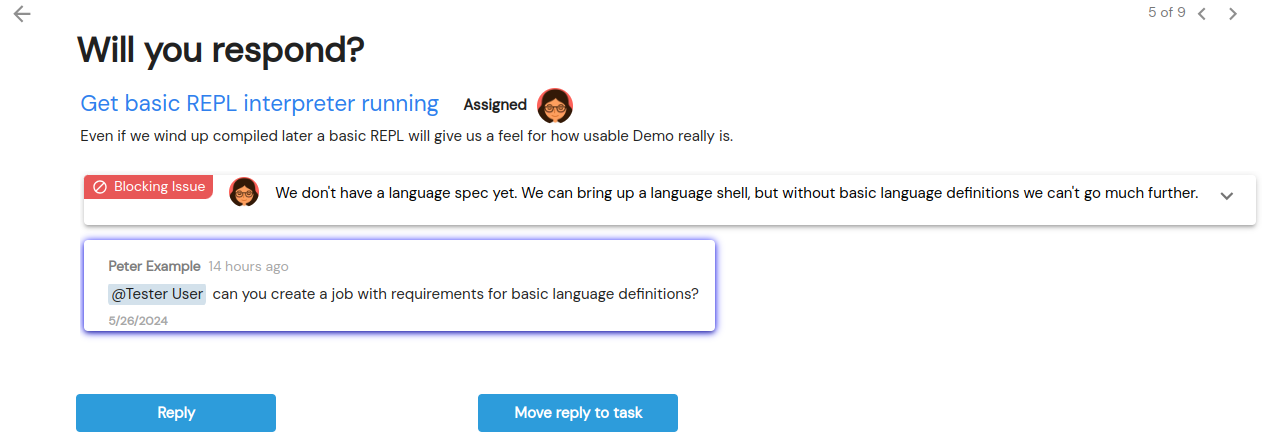
Click a notification for a question, suggestion, note, review or reply to open that object directly. The Next message button opens the same destination. The destination briefly highlights in yellow so you can find it. A notification becomes available to open after its underlying objects have synced. Other notification types still open an action wizard. When an action is completed or no longer necessary, its notification is removed.
On questions, suggestions, notes, reviews and replies, the notification button clears the notification in one click. Hover over it to see its action. Required-response notifications offer Mark read instead and stay in the inbox until the required work is completed. Mark read is disabled after the notification has been read.
Opening a changed view-level note from a notification turns Show changes on, even if you turned it off on a previous visit. You can hide the changes during the visit. Opening the note normally keeps your saved preference.
When a submission moves an item to Responded, Uclusion opens the next remaining Unresponded item in the current display order, returning to the first when needed. If none remain, it follows the submitted item into Responded.
You able and Pokable
The You able section of the inbox is driven by notifications of events created by other view members. The Pokable section of the inbox tracks everything where you are waiting on others for input and allows you to poke them to resend notifications.