Search
Uclusion has two ways to search, built for different questions.
Header search — quick lookups in recent items
The header search finds recent items containing your text and constrains whatever view you are on instead of opening separately. Typing a short code (like J-Engineering-11) jumps straight to that item.
If you are a level above the results you want, click through and your search will be preserved. Opening a job automatically takes you to its first match, checking tabs from left to right and using the order shown within each tab.
Counts show for views and tabs that contain search results. Click a tab’s “match” count to go to the first matching item represented by that count. If the match is in a reply or an option, Uclusion opens that item within its thread and briefly highlights it. Clicking the count again returns to its first match.
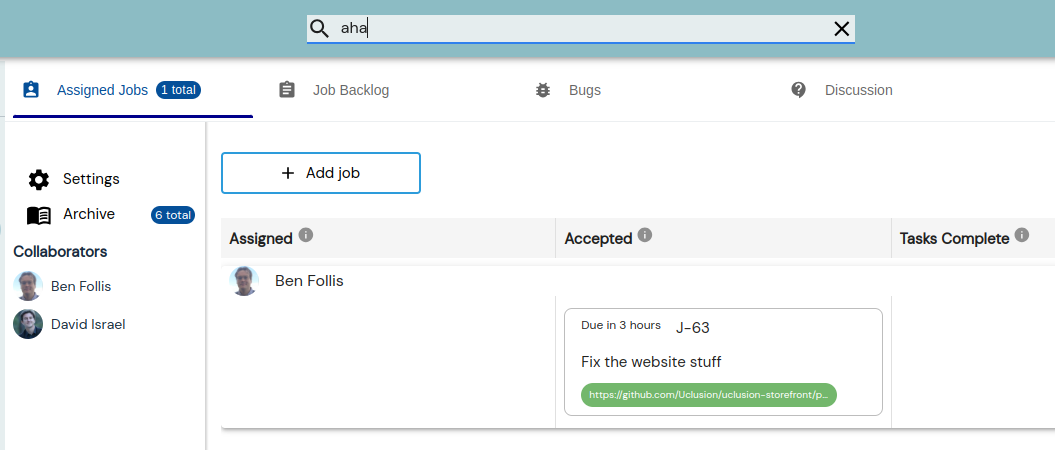
Use it when you roughly know what you are looking for and it is recent — browser stored data limits how far back it reaches, and results display in a UI guided way.
AI search — anything, over the whole workspace
For complex questions — “do we have a backlog job that includes work X?”, “did we resolve a bug on Y
recently?”, “what did we decide about Z?” — ask
your AI agent. It runs
uclusion export to
refresh the whole workspace as local markdown, searches it, and displays each found item with its
details right in the conversation — you drill in there, and follow a short code into Uclusion only
when you want the live object.
Use it when the question is older, resolved, or fuzzier than a text match — the export holds every job, task, bug, note, question, and suggestion with its options, votes, and reasons.